
Microsoft is currently moving all users toward the New Outlook for Windows, a modernized email client designed to replace the decades-old Classic desktop application. For many people, this is not just another optional refresh that can be ignored for a while. It is a Mandatory Transition, one that will change how daily email, calendars, and work communications are handled, whether you are ready for it or not.
As of early 2026, we are very much in the middle of what Microsoft calls the “Opt-Out” phase. That phrase sounds gentle, but in practice it means the default experience is changing. Individual users, small businesses, and large IT-managed organizations are all being nudged, and sometimes pushed, toward the same destination. Understanding how this works now can save a lot of frustration later, especially when productivity is on the line.
What is the “New Outlook” Transition?
To make sense of the shift, it helps to clearly define the two versions involved. They may share a name, but under the hood they behave quite differently.
Classic Outlook is the traditional, feature-rich desktop application that many people still think of when they hear the word “Outlook.” This includes versions like Outlook 2016, 2019, and 2021. It relies heavily on local data storage through PST and OST files and supports legacy COM add-ins, custom VBA scripts, and deeply integrated workflows that some teams have built over many years.
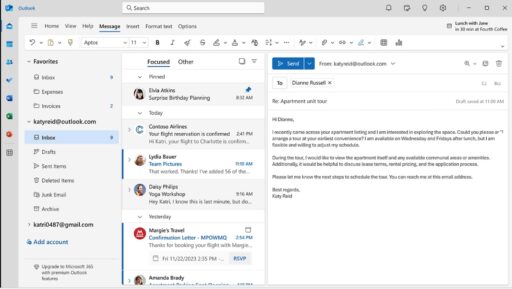
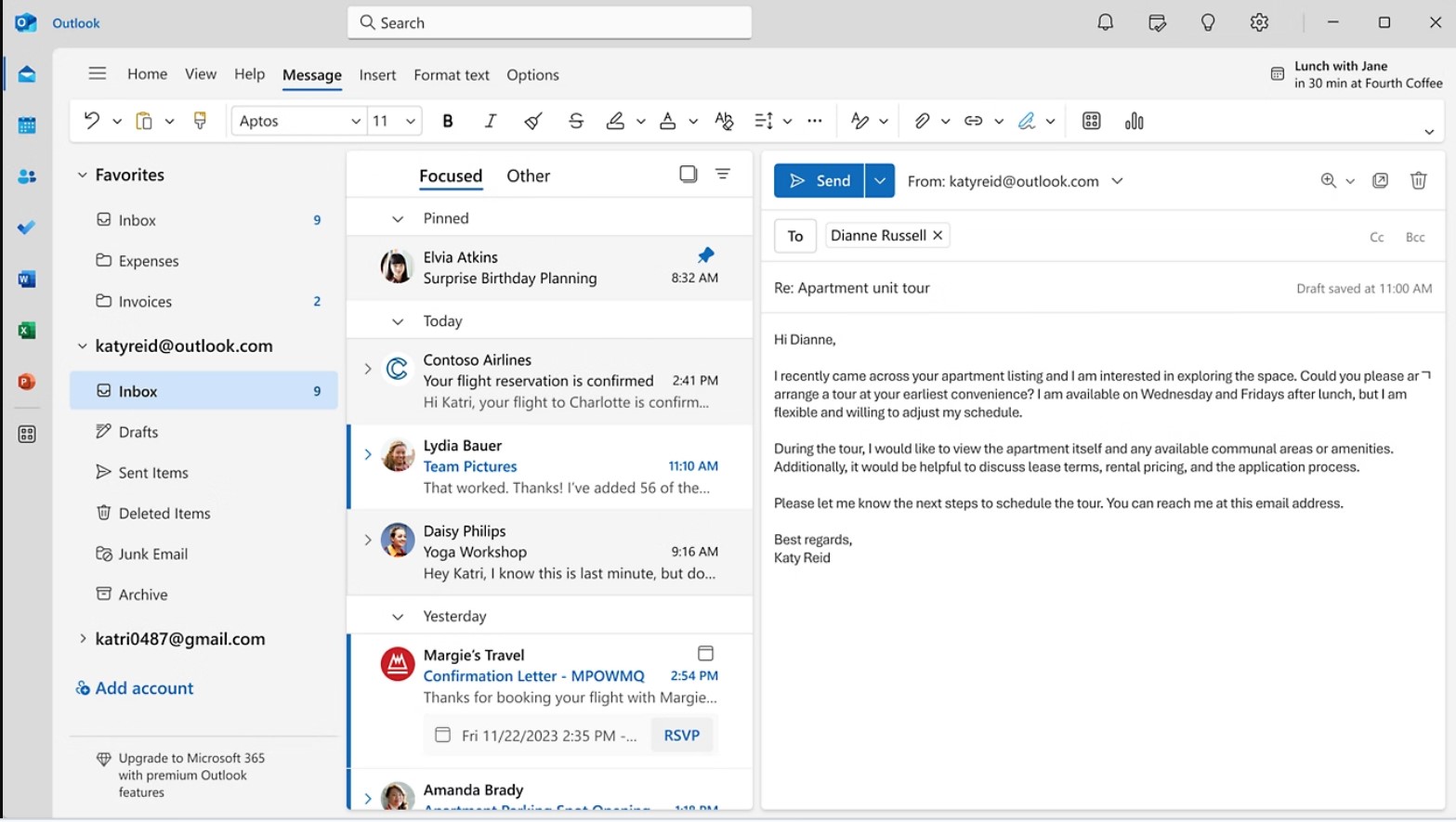
New Outlook for Windows, on the other hand, is built on a modern, web-based architecture. Its look and feel closely mirror Outlook.com. The focus here is speed, cloud synchronization, and tighter integration with Microsoft’s online services, including newer AI-powered features such as Copilot. It feels lighter, faster in some areas, but also more opinionated about how things should work.
The Mandatory Timeline
Microsoft has laid out a fairly clear roadmap, although the real-world experience can still feel uneven depending on your account type.
From October 2024 through late 2025, automatic “Try the New Outlook” toggles began appearing for personal users and small business accounts. Some people flipped the switch out of curiosity. Others logged in one morning and found it already enabled.
Between January and April 2026, the mandatory transition for Microsoft 365 Enterprise users begins in earnest. For many of these users, Outlook will simply default to the New Outlook upon launch, sometimes without much warning beyond a brief notification.
By 2029, Classic Outlook reaches full End of Life. At that point, there will be no security patches, no fixes, and no official support. Even if the app still launches, using it will be a risk.
How to Switch to New Outlook (and Back Again)
If you have not been transitioned yet, or if you were moved automatically and need to go back to recover a missing feature, there are still options available for now.
Method 1: Using the In-App Toggle
This is the most common and straightforward way to move between versions.
Open Classic Outlook.
Locate the “Try the New Outlook” toggle in the top-right corner of the window.
Slide the toggle to “On.”
A prompt will appear asking you to restart the application. Click Next or Restart.
Outlook will download the required components and reopen using the New Outlook interface.
The first launch can take a bit longer than usual, which is normal, even if it feels slightly unsettling the first time.
Method 2: Reverting to Classic Outlook
If you discover that the New Outlook is missing something critical, perhaps a plugin you rely on daily or offline access to PST files, you can still switch back for now.
Open New Outlook.
Click on the Help tab in the top ribbon.
Select Go to Classic Outlook.
You will be asked for feedback on why you are switching back. You can fill this out or simply click Skip.
The application will close, and Classic Outlook will launch again.
It is worth remembering that this option will not last forever, even if it works today.
How to Prepare Your Workflow for the Transition
Switching Outlook versions is not just about clicking a toggle. The bigger challenge is making sure your data, accounts, and daily tools still behave the way you expect.
- Verify Account Compatibility
New Outlook currently supports Exchange Online, Gmail, Yahoo, and iCloud accounts. If you rely on a specialized POP or IMAP setup, or an on-premises Exchange server, you may run into sync limitations or missing features. It is a good idea to check your account type under Settings > Accounts before making the jump.
- Move Your PST Files
Classic Outlook stores a lot of information locally in PST files. New Outlook is far more cloud-centric by design.
You must manually import your existing PST files into New Outlook by navigating to Settings > General > Import/Export. This step is easy to overlook, and skipping it can make years of archived email feel like it has simply vanished.
- Replace Legacy Add-ins
The New Outlook does not support COM or VBA add-ins, which can be a major change for long-time users.
The practical solution is to search the Microsoft AppSource for Web Add-ins offered by your service providers, such as Zoom, Salesforce, or Adobe. These web-based add-ins are the only type compatible with the new architecture, and not every legacy tool has an equivalent yet.
Troubleshooting Common Transition Issues
Across forums like Reddit and the Microsoft Tech Community, many users have shared similar pain points during the transition. A few problems come up again and again.
The toggle is missing: If you do not see the option to try or revert Outlook, your IT administrator may have disabled it using Group Policy. For home users, this can also happen if Windows is not fully up to date.
App crashing on launch: In some cases, the migration folder becomes corrupted during the switch.
A common fix is to navigate to C:\Users\ [YourUsername]\AppData\Local\Microsoft and delete the folder named Olk. Restart Outlook afterward to trigger a clean setup.
Missing features like Find Related or Rules: New Outlook handles rules on the server side. If your client-side rules disappear, you will need to recreate them under Settings > Mail > Rules. It is not ideal, but for now it is the expected behavior.
The transition to New Outlook is clearly happening, whether it feels perfectly timed or not. Taking a bit of time now to understand the process, the limitations, and the workarounds can make the change feel far less abrupt when it finally becomes unavoidable.
Frequently Asked Questions (FAQ)
Q. Can I use Classic and New Outlook at the same time?
A. Yes. Currently, both applications can reside on your computer simultaneously. Searching for “Outlook” in your Start menu will often show both “Outlook” (the new one) and “Outlook (Classic).”
Q. Will I lose my emails during the transition?
A. No. Your emails are stored on the server (Exchange, Gmail, etc.). Switching the interface (the “skin”) of your email client does not delete your data on the server. However, local-only folders (PST) must be imported manually.
Q. What happens if I refuse to switch by 2026?
A. If you are an Enterprise user, Microsoft will eventually remove the “Opt-Out” toggle. While the old software may technically run, it will stop receiving security updates in 2029, making it a major security risk for your data.
Q. Does the New Outlook work offline?
A. Yes, but support is currently partial. You can view cached emails and draft new ones, but many advanced offline features from the Classic version are still being developed.